Now in public testing: try it and tell us what to fix

Your live studio, on a tablet.

OBSpad turns an Android tablet or iPad into a full production desk, modeled on OBS Studio. Build scenes, preview in Studio Mode, key out a green screen and go live on Facebook, YouTube or Twitch with just your stream key.

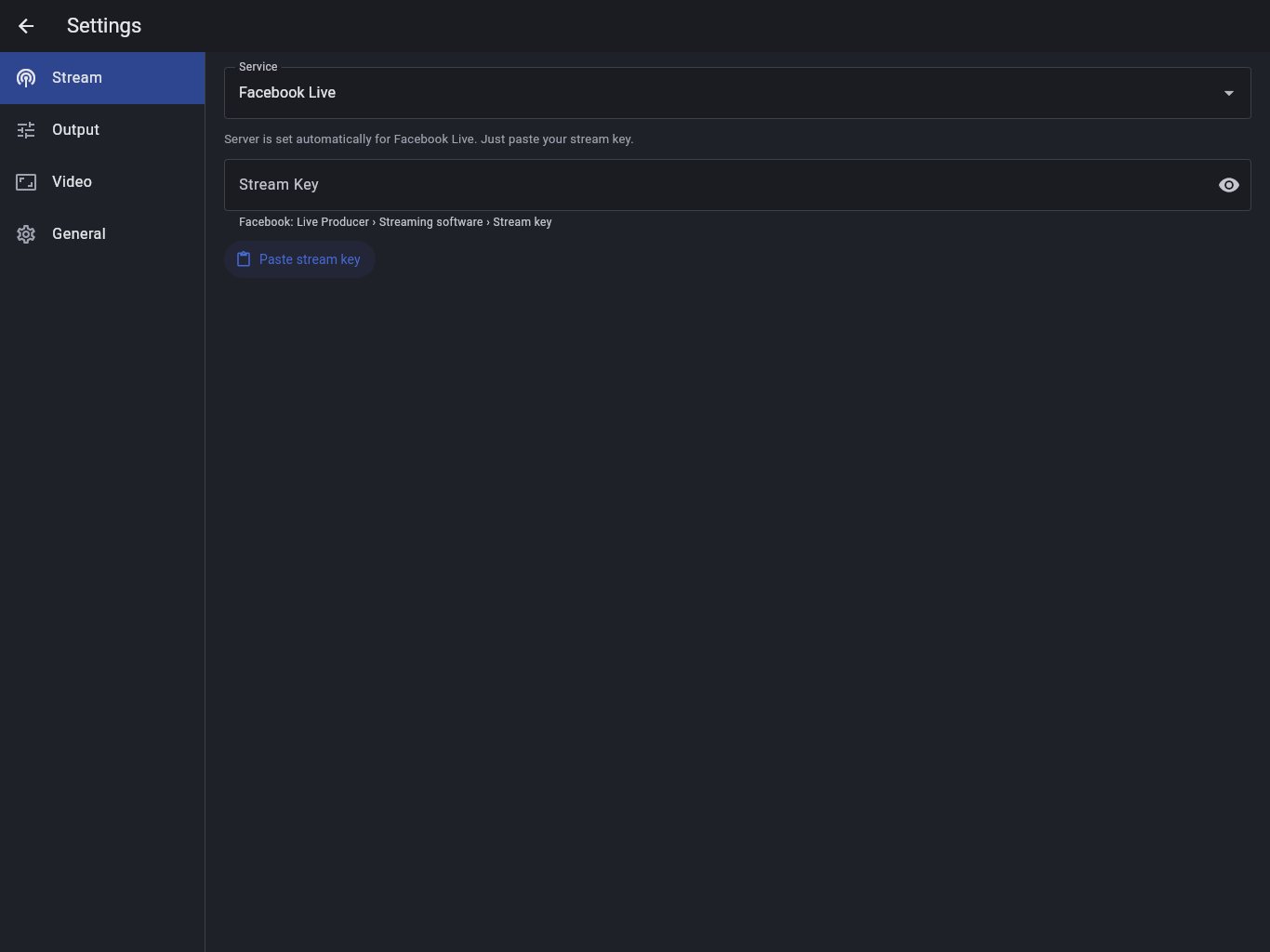
Stream settings with Facebook Live selected and only a Stream Key to paste.
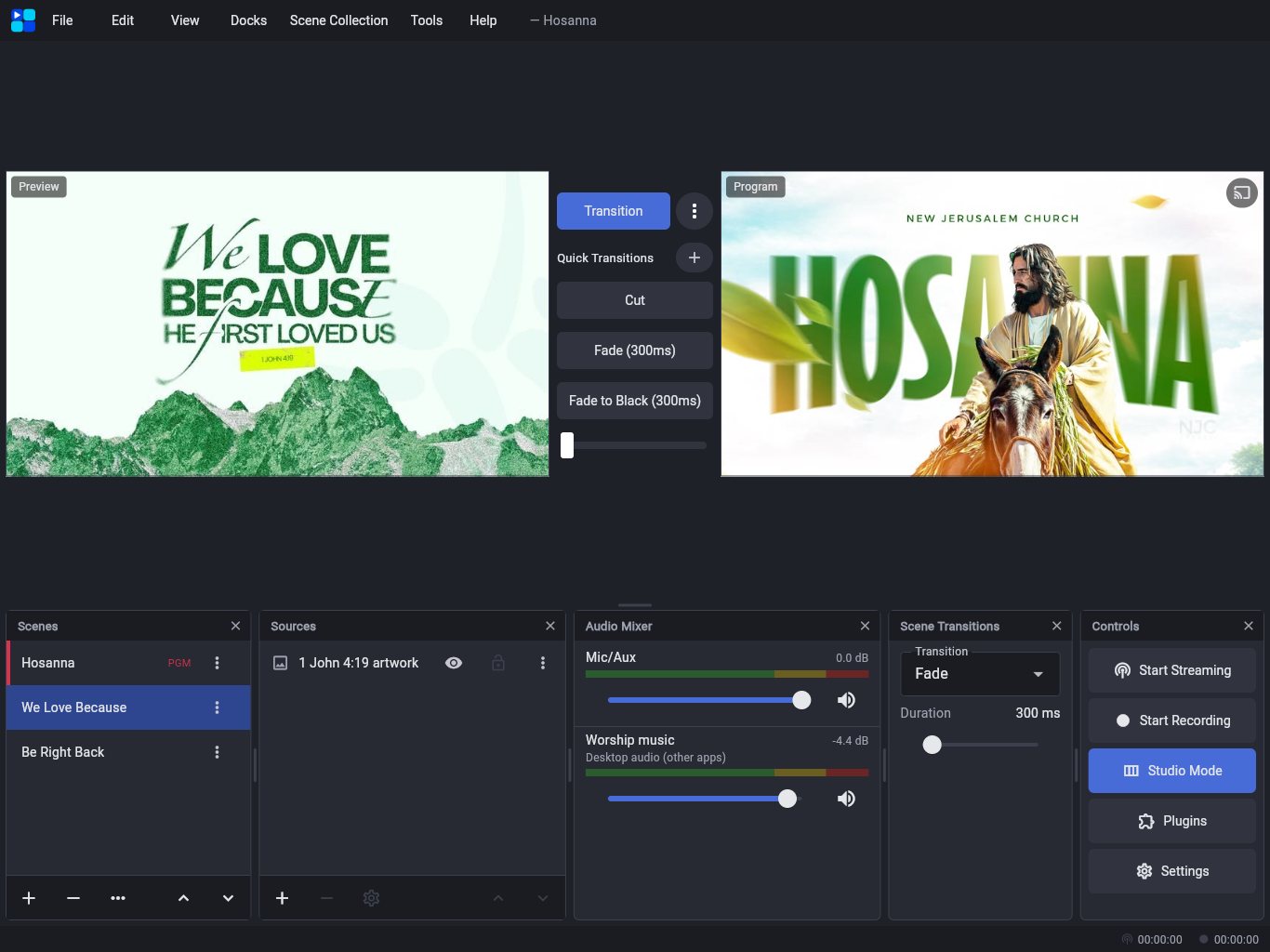
OBSpad in Studio Mode during a church service: the We Love Because scene in Preview, the Hosanna artwork live in Program, quick transitions and a T-bar between them, and the docks below.
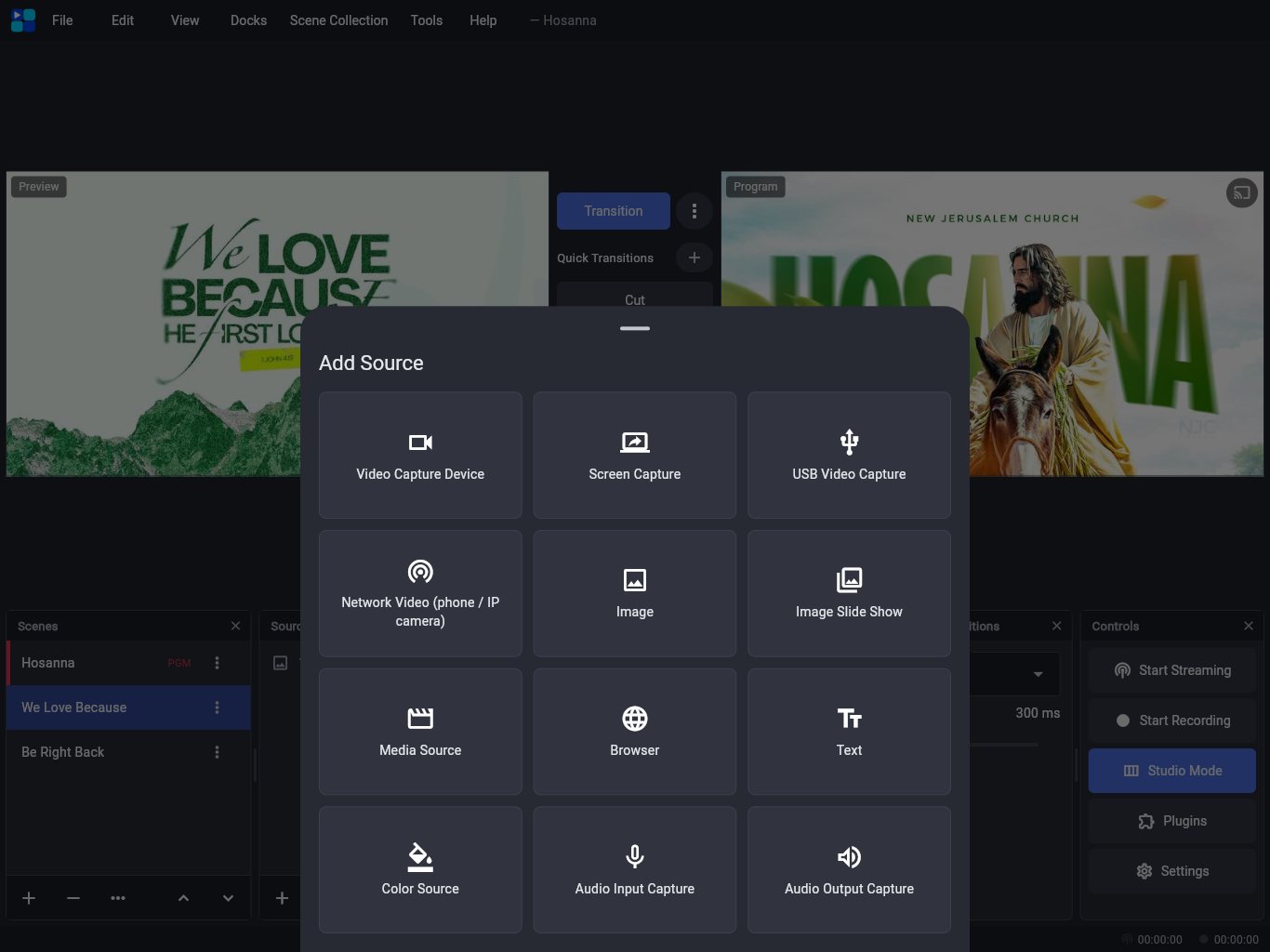
The Add Source sheet with Video Capture Device, Screen Capture, USB Video Capture, Network Video, Image, Image Slide Show, Media Source, Browser, Text, Color Source, Audio Input Capture and Audio Output Capture.
Studio ModeQuick Transitions & T-barMultiviewUndo & RedoStereo AudioSeveral MicsReplay BufferApply LUTChroma KeyUSB Capture CardsFacebook LiveDocking StationsNDI® OutputPlugins from GitHub
Why OBSpad

Everything a live show needs, in one app

The parts of OBS you reach for during a show, rebuilt for fingers: big targets, pinch to scale, long-press menus, and docks you can close or resize.

Preview before it goes live

Studio Mode is on from the start. New sources are previewed in their properties and only join the scene when you tap Add.

Filters that matter

Chroma Key, Color Correction, Apply LUT, Sharpen, Blur, Scroll and masks for video; Noise Suppression, Noise Gate, Compressor and Limiter for mics.

Any screen you plug in

Send Program or a Multiview to a monitor on your docking station, USB-C or HDMI, or cast it to a smart TV with Smart View, Miracast or AirPlay.

Hardware just works

HDMI capture cards, webcams, USB sound cards and Ethernet adapters, plugged in directly or through a hub. Each input of a USB interface can be its own mic.

13 source types

Cameras, screen capture, capture cards, phones as webcams, images, slide shows, media, browser pages, text, color, audio and nested scenes.

Facebook Live ready

Pick Facebook Live, YouTube, Twitch or Kick and paste your stream key. The server is filled in for you.

Record while live

MP4 straight to your gallery, or crash-safe FLV, from the same hardware encoder as the stream.

Plugins from GitHub

Paste a GitHub link to add overlays, chat, scene rotators and control panels, in a sandbox.

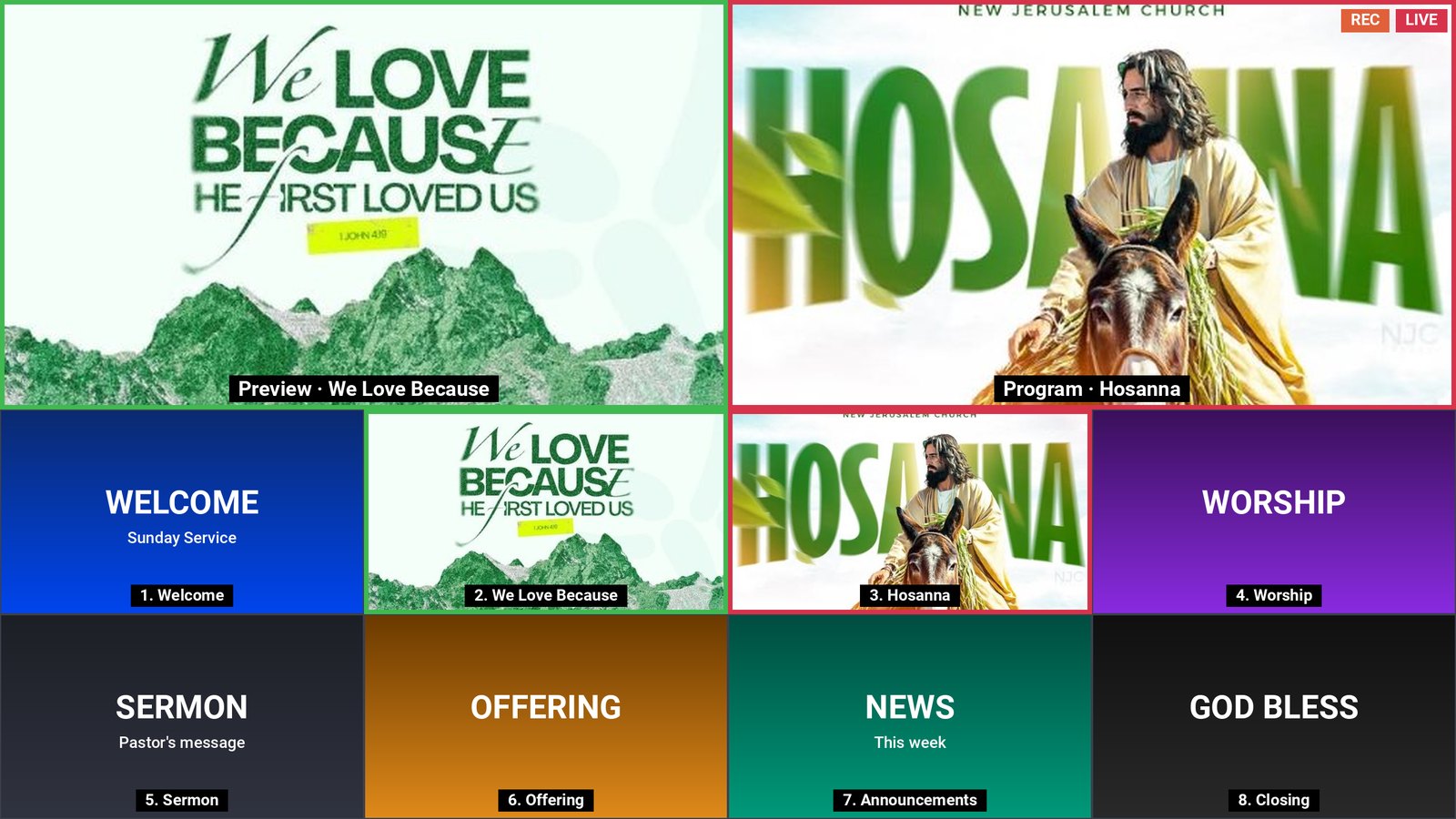
OBSpad's Multiview: Preview with a green border and Program with a red border and LIVE and REC badges on top, and eight numbered scenes below.
Multiview

Every scene at a glance

Like OBS Studio’s Multiview: Preview and Program on top, and 4, 6, 8 or 16 of your scenes below. Program has a red border, Preview a green one, with LIVE and REC badges.

  • Full screen on the tablet: tap a scene to put it in Preview; double-tap it or hold it for a second to send it live.
  • On a second screen: a monitor on your dock, USB-C or HDMI, or a smart TV, while you run the show on the tablet.
  • Open it from View › Multiview (Fullscreen), or long-press Program. Pick the layout there, or from the button at the top of the Multiview.
How it works

From install to on air in four steps

No computer needed once it's installed. Everything happens on the tablet.

1

Install OBSpad

Download the APK on your Android tablet, or sideload the IPA onto your iPad with your Apple ID.

  • Android 7.0 or newer
  • iPadOS 15 or newer
  • Free, updated with every build
2

Add your sources

Tap + in Sources and pick what to show. Each source opens with a live preview, so you can set it up before it reaches the scene.

  • Tablet camera, capture card or phone camera
  • Images, slide shows, videos and web pages
  • Microphone and app audio in the mixer
The Add Source sheet.
3

Paste your stream key

Open Settings, choose your service and paste the key. Pasted the whole URL by mistake? OBSpad keeps just the key.

  • Facebook: Live Producer › Streaming software › Stream key
  • Server set to rtmps://live-api-s.facebook.com:443/rtmp
  • Custom RTMP and RTMPS servers too
Stream settings with Facebook Live selected and only a Stream Key field.
4

Go live

Tap Start Streaming. Switch scenes with Transition, a quick transition or the T-bar, and keep an eye on bitrate and dropped frames in the status bar.

  • Auto-reconnect if the network drops
  • Program or Multiview on a second screen
  • Record at the same time
Everything in OBSpad

The full feature list

What you get today in the Android and iPad apps.

Production

  • Studio Mode with Preview and Program side by side
  • Transition button, Quick Transitions and a T-bar
  • Cut, Fade, Slide, Swipe and Fade to Black
  • Scenes with unlimited sources, reordering and duplicating
  • Pinch to scale, twist to rotate, snap to edges
  • Menu bar, closable and resizable docks
  • Undo/Redo, keyboard shortcuts and nested scenes
  • Multiview full screen on the tablet or a second screen

Sources

  • Front and back cameras up to 4K, with zoom, torch and exposure
  • Screen capture of games and apps, with their sound
  • HDMI capture cards and USB webcams
  • Phones as webcams: DroidCam, IP Webcam, IP cameras
  • Image, Image Slide Show, Media, Browser, Text, Color
  • New sources are previewed before they join a scene

Audio

  • Mixer with faders, mute and level meters
  • Microphones, USB sound cards and audio interfaces
  • Automatic switch to a USB device when plugged in
  • Audio Output Capture for other apps' sound
  • Video sound in the stream, with audio monitoring
  • Several mics on a 2-input interface, in stereo
  • Noise Suppression, Noise Gate, Compressor, Limiter

Filters

  • Chroma Key and Color Key for green screens
  • Luma Key, Sharpen and Blur
  • Color Correction: gamma, contrast, saturation, hue
  • Scroll for tickers and crawls
  • Rounded and circle masks for webcams
  • Apply LUT (.cube and PNG) for colour grading

Output

  • Stream to Facebook Live, YouTube, Twitch and Kick
  • Any RTMP or RTMPS server, with auto-reconnect
  • Record to MP4 or FLV while streaming, up to 2K
  • Stream delay and replay buffer
  • NDI® output to vMix and OBS on your network (ndi.video)
  • Program or Multiview on a second screen

Hardware & plugins

  • Docking stations recognised automatically
  • Monitors over USB-C, HDMI or a dock, or cast to a TV
  • Wired Ethernet preferred for the stream
  • Plugins installed from a GitHub link
  • Exit button, scene backup and import
1080pCanvas · up to 2K output
RTMPSSecure streaming
13Source types
14Filters

Start your first stream today

Download OBSpad for your tablet. It's free, and new builds arrive with every update.

Files: obspad.apk and obspad-unsigned.ipa from the latest GitHub release.

Install

Getting it onto your tablet

OBSpad isn't in the Play Store or App Store yet, so it installs from the files above.

Android tablet

  1. Open this page on the tablet and tap Android tablet.
  2. Open obspad.apk. When asked, allow your browser or Files app to install unknown apps.
  3. Tap Install, open OBSpad, and allow the camera and microphone.

iPad

  1. On a Mac or Windows PC, install Sideloadly or AltStore.
  2. Download obspad-unsigned.ipa on that computer and connect the iPad with a cable.
  3. Drag the IPA into Sideloadly, sign in with your Apple ID and press Start.
  4. On the iPad, open Settings › General › VPN & Device Management, trust your Apple ID, and turn on Developer Mode if asked.
Guides

How to do it in OBSpad

Short steps for the things people ask about most. They work the same on Android tablets and iPad unless noted.

Show the program on a TV or monitorCable, USB-C or docking station
  1. Plug the monitor into the tablet with a USB-C to HDMI adapter, or into your docking station.
  2. OBSpad shows the Program on it full screen. To choose, long-press Program, or use View › Fullscreen Projector or View › Multiview.
  3. Nothing shows up? Open Tools › Docking Station & Screen: it lists what the tablet detects and why a screen may be missing.
Use the MultiviewPreview, Program and up to 16 scenes
  1. Open View › Multiview (Fullscreen) and pick This tablet, or a connected screen or TV.
  2. On the tablet, tap a scene to put it in Preview, or double-tap it (or hold it for a second) to send it straight to Program with your transition.
  3. Choose 4, 6, 8 or 16 scenes with the layout button at the top. Close it with the × button or the back gesture. Program shows a red border, Preview a green one.
Multiview touch controlsTap, double-tap and hold
Tap a scene
Puts it in Preview (green border). With Studio Mode off, it goes live straight away.
Double-tap a scene
Sends it to Program (red border) with your transition. The scene that was live moves to Preview.
Hold a scene for 1 second
The same as a double-tap: the scene goes live. A shorter hold does nothing.
Layout button (top right)
Shows 4, 6, 8 or 16 scenes below Preview and Program.
Back to OBSpad, ×, back gesture or Esc
Closes the Multiview and returns to the studio.
Cast to a smart TVSmart View, Miracast or AirPlay
  1. Long-press Program and tap Cast to a wireless screen….
  2. Android: pick your TV in the Cast or Smart View screen that opens. iPad: open Control Center, tap Screen Mirroring and pick your Apple TV.
  3. When it connects, the TV shows the Program while you keep working on the tablet. Chromecast mirrors the whole tablet instead.
Use two microphones on one USB interfaceEach input as its own mic
  1. Plug in the audio interface. OBSpad switches to it automatically.
  2. Add an Audio Input Capture source for each mic.
  3. In the Audio Mixer, set each mic to Input 1 (L) or Input 2 (R). Each gets its own fader, meter and filters.
Clean up your voiceNoise Suppression, Gate, Compressor
  1. In the Audio Mixer, tap the mic’s Mic adjustments button for one-tap noise suppression and levelling.
  2. For finer control, open the mic’s Filters and add Noise Suppression, Noise Gate, Compressor or Limiter.
  3. Watch the meter: speech should peak in the yellow, never in the red.
Play a video with its soundMedia Source and audio monitoring
  1. Add a Media Source and pick the video. Its sound goes into the stream and recording.
  2. Under Audio Monitoring, choose Stream + tablet to hear it on the tablet too.
  3. Use the play, pause and restart buttons in the bar under the canvas.
Colour-grade with a LUTApply LUT filter
  1. Select a camera or video source and tap Filters in the bar under the canvas.
  2. Add Apply LUT and browse for a .cube file (or a LUT from a plugin).
  3. Lower Amount to blend the look with the original picture.
Save an instant replayReplay buffer
  1. Set how many seconds to keep in Settings › Output › Replay buffer.
  2. Tap Start Replay Buffer in the Controls dock.
  3. After a great moment, tap Save Replay. The last seconds are saved as a file.
Add a stream delayViewers see it seconds later
  1. Open Settings › Output and set Stream delay.
  2. Start streaming: viewers see everything that many seconds late, so you have time to cut away.
  3. Recordings aren’t delayed.
Stream or record in 2K2560×1440
  1. In Settings › Video, set the Output resolution to 2560x1440 (2K) at 30 FPS.
  2. In Settings › Output, use 9000–18000 kbps and a wired or strong Wi-Fi connection.
  3. YouTube accepts 1440p; Facebook Live and Twitch scale it down, so 1080p is better there.
Send video to vMix or OBS over NDI®Same network, no cables
  1. Open Tools › Plugins and turn on NDI Output.
  2. Give it a name. It appears as an NDI source in vMix, OBS (DistroAV) or NDI Studio Monitor on the same network.
  3. The NDI runtime has to be included in the build; see ndi.video.
Install an overlay or pluginFrom GitHub or a .zip
  1. Open Tools › Plugins › Get plugins.
  2. Paste a GitHub link (owner/repo works), or tap Install from .zip…. Repos without an OBSpad manifest are converted.
  3. Web overlays then appear in Add Source › From plugins, LUTs in Apply LUT, and docks on the Plugins screen. Desktop-only OBS plugins (.dll, C/C++, Lua) can’t run on a tablet.
Work faster with a keyboardShortcuts and undo
  1. Connect a Bluetooth or USB keyboard.
  2. See every shortcut in Help › Keyboard Shortcuts: switch scenes, transition, start and stop streaming and recording.
  3. Edit › Undo and Redo (Ctrl+Z / Ctrl+Y) take back changes to scenes and sources.
Public testing

Help test OBSpad

OBSpad is new and built by one developer. Install it, use it for a real stream, and tell us what doesn’t work and what’s missing. Every report shapes the next build.

Opens a short form on GitHub (a free account is needed). In the app: Help › Send Feedback fills in your build for you. See what others reported in open issues.

What to try

  1. Stream a short test to Facebook Live or YouTube with a camera, a picture and some text.
  2. Play a video with sound, and switch scenes with the T-bar.
  3. Plug in what you use: USB mic or interface, capture card, HDMI adapter or dock.
  4. Record while streaming and check the file.
  5. Leave it running for 30 minutes: does it stay smooth and cool?

Please mention your tablet model and what you plugged in.

About

A broadcast desk that fits in one hand

OBSpad was built for people who go live without a studio: churches streaming Sunday service, schools and events, creators and small teams. It brings the scenes, Studio Mode and filters that OBS Studio users know to a tablet, so you can run a whole production from the front row.

Everything happens on the device. The tablet mixes your sources, encodes the video with its hardware encoder and streams it directly to Facebook, YouTube or any RTMP server. There's no account to create and no cloud service in between.

Android 7.0+ and iPadOS 15+Tablets and iPads, always in landscape
No account neededYour scenes and stream key stay on the tablet
Free to downloadNew builds with every update
Works with your gearCameras, capture cards, sound cards, docks
Victor Abah Designed and developed by

Victor Abah

OBSpad is made by Victor Abah. See more of Victor's work, or get in touch, at www.victorabah.com.

Visit www.victorabah.com
FAQ

Common questions

Anything else? Open an issue on GitHub.

Is OBSpad free?

Yes. The test builds on GitHub are free to download and use.

I found a bug or I miss a feature. Where do I tell you?

In the app, open Help › Send Feedback, or use Report a problem and Suggest a feature on GitHub. Include your tablet model, the build number and what you had plugged in; a screenshot or screen recording helps most.

Do I need OBS Studio on a computer?

No. OBSpad does the mixing, encoding and streaming on the tablet itself. It's modeled on OBS Studio, so the scenes, sources and Studio Mode will feel familiar.

How do I stream to Facebook Live?

In Settings › Stream, choose Facebook Live and paste the stream key from Live Producer (Streaming software). The server address is filled in for you.

Can I use an HDMI camera or a USB sound card?

Yes. Plug in a UVC capture card, webcam or USB sound card directly, or through a USB-C hub or docking station. Add a USB Video Capture source for video; sound cards are picked up by Mic/Aux automatically. On iPad, USB video needs iPadOS 17.

Why doesn't my USB-C to HDMI adapter or dock show a screen?

The tablet's USB-C port must support video out (DisplayPort Alt Mode). Many Android tablets only charge and transfer data over USB-C; if the TV shows no picture even before you open OBSpad, the tablet can't send video that way. On Samsung tablets choose DeX or Screen mirroring when you plug in. Tools › Docking Station & Screen lists every screen and USB device the tablet reports.

Why does the iPad app stop opening after a week?

With a free Apple ID, sideloaded apps have to be signed again every 7 days. Open Sideloadly or AltStore and refresh it; a paid developer account extends this to a year.

Which tablets support the Chroma Key filter?

Every supported iPad, and Android tablets that use the Impeller graphics engine (most Android 10+ devices with Vulkan). Other filters work everywhere.